User Settings
After successfully logging into the portal, you are automatically taken to the user settings.
User Settings
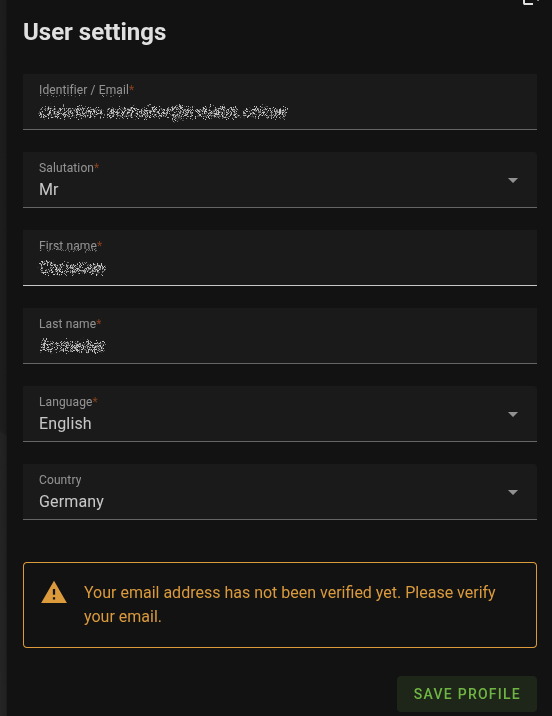
The initial data comes from the user registration and can be adjusted and saved if needed.
Please check the information occasionally, especially your email address, as it is required if you forget your password and need to reset your access.
Verify Email
After registering as a new user or when making changes, you must verify your email address.
You can see this at the bottom of the screen.
Go to the menu item “Verify Email” and then click the “Send Code” button.
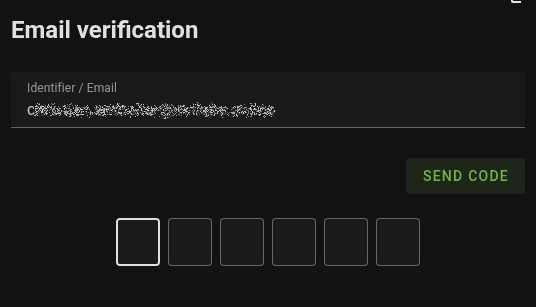
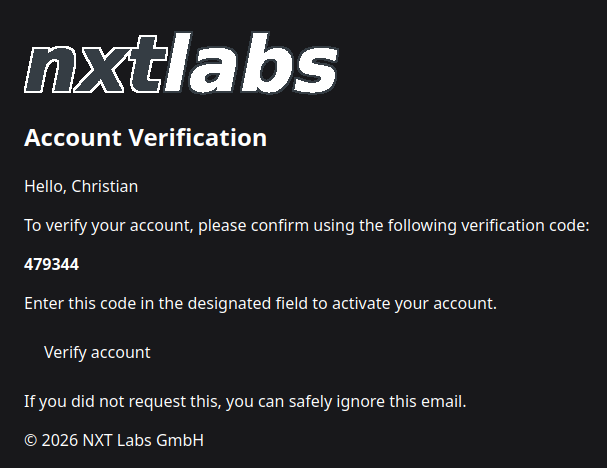
You will then receive an email containing a six-digit code at the specified email address.
Enter this code in the designated field in the input form. Upon success, you should be automatically redirected back to your user profile.
Customer Account
Your customer account should be entered and saved by you at the beginning, as we can only activate access to the web services then.
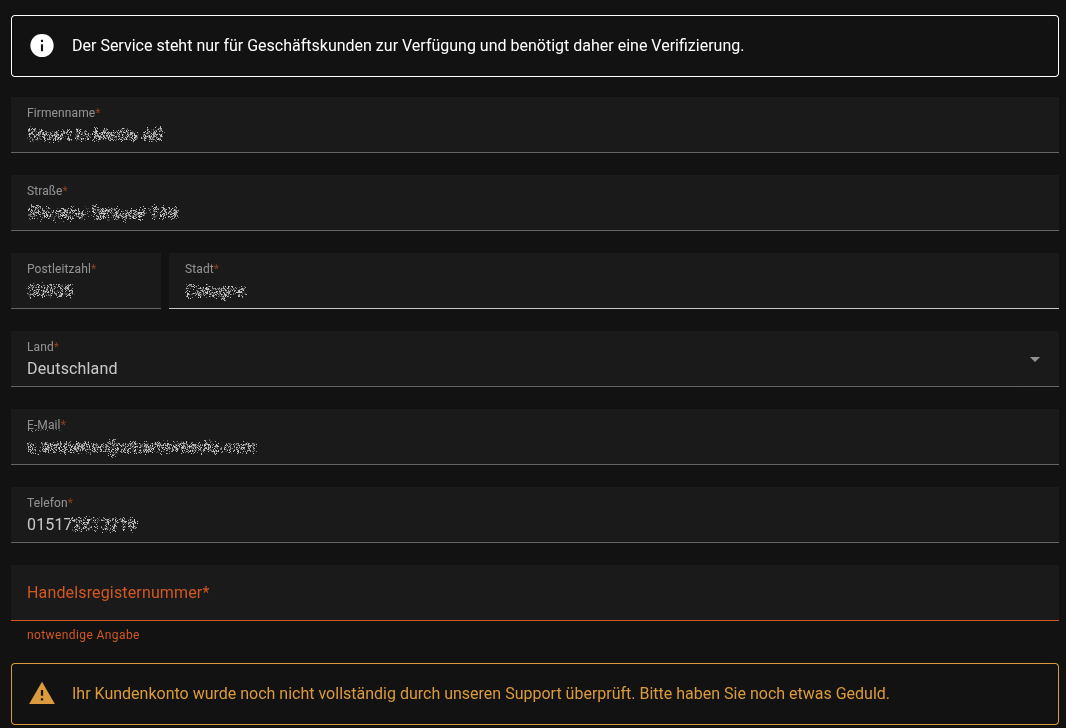
Save the profile so that we can start the verification immediately. Only after successful verification will you gain access to the production environment.